
Trend Report · May 12, 2026
How to Work Around Shopify's Intermittent 'Save Order' Prompt for Manual Orders
A step-by-step operational playbook to handle Shopify's intermittent 'save order' prompt, plus how to use low-cost add-ons like thank-you cards and Earth Day pins to protect margins.
Save order? When creating a new order we now occasionally have to click save order after creating the order
A few weeks back, Shopify introduced a subtle but frustrating change: after manually creating a new order, the system sometimes requires an extra click to save it. It doesn't happen on every order, but when it does, it breaks flow and risks losing entered data. For jewelry sellers on Shopify who regularly process wholesale orders, custom bundles, or manual draft-to-order conversions, this glitch can waste time and create errors. The timing matters because many sellers are entering peak season for Earth Day and Mother's Day promotions, where order accuracy directly impacts customer trust. Ignoring the extra click means potentially shipping the wrong items or missing an order entirely. Understanding why this happens and building a simple operational fix is the difference between smooth fulfillment and costly mistakes.
Why This Window Matters for Your Jewelry Business
The 'save order' issue is still inconsistent—Shopify hasn't rolled it out universally. That gives you a short window to test and adapt before the change becomes permanent or spreads to more stores. Early adopters who document and standardise a workaround will avoid the confusion and lost orders that late adopters will face. For wholesale buyers using DayJewel, every manual order you create represents a potential $100–$500+ purchase. One forgotten save could mean a customer isn't invoiced, inventory isn't deducted, and you lose a sale. The solution isn't just about clicking a button—it's about building a habit that protects your revenue while you evaluate whether an automation app or a simple checklist suits your workflow best.
Who Needs This Playbook
This playbook is for any Shopify store owner who manually creates orders—especially those selling wholesale accessories like fashion jewelry, where custom orders, bulk discounts, and limited-edition launches are common. If you frequently add line items, adjust prices, or enter customer notes, you're most exposed to the save-order glitch.
Shopify seller
Jewelry resellers who manually create 5–20 orders per week for wholesale clients. They need a repeatable checklist to avoid losing data, and low-cost add-ons like thank-you cards ($0.32–$0.52 ea) to protect margins when errors occur.
Boutique owner
Boutique owners who use manual orders for custom pieces or in-store pickup. They can leverage the 'save order' moment to add a free Earth Day pin as a surprise—turning a glitch into a loyalty builder.
Pop-up operator
Pop-up operators often create orders on the fly. They need a mobile-friendly workflow to ensure every order is saved before moving to the next customer. The risk of forgetting is highest in a busy stall environment.
Implementation Stages
Diagnose the Glitch Frequency
Trigger: You notice the 'save order' prompt appearing sporadically after creating a new manual order.
Keep a log for one week: note each manual order, whether the save prompt appeared, and what fields you filled (customer info, items, notes, discounts).
✓ A clear picture of when the glitch triggers—e.g., only on orders with custom notes or specific payment methods.
✗ Without logging, you'll assume it's random and may not find the trigger, wasting time on general fixes.
Implement a Post-Creation Checklist
Trigger: After completing stage 1, you have a list of order types that trigger the prompt.
Create a physical or digital checklist: after clicking 'Create Order', check the top of the page for a blue 'Save' button. If present, click it. Then navigate to Orders > All and verify the new order appears.
✓ Zero lost orders and a measurable reduction in processing errors within 3 days.
✗ Skipping the double-check step could still result in missing a save prompt that appears after you leave the page.
Test Draft Order Method
Trigger: If the glitch persists despite the checklist (more than 20% of manual orders), or if you process more than 10 manual orders daily.
For one week, create all manual orders as Drafts first: Drafts > +, fill details, then click 'Convert to Order'. Note any save prompts during conversion.
✓ The save prompt disappears entirely, because Drafts have a separate save mechanism. You also gain the ability to send invoice links.
✗ If your workflow relies on immediate inventory deduction, conversion may cause a short delay before stock updates.
Automate with a Time-Saving App (Optional)
Trigger: After stage 3, you decide the Draft method is too slow for high-volume manual orders (e.g., 20+ per day).
Install an order workflow app like 'Order Automation' or 'Rush' (free trails available). Configure it to automatically save any new manual order after 5 seconds of inactivity.
✓ Orders are saved without extra clicks, reducing processing time by 30–50%.
✗ Free app tiers may have limits. If the app fails, you could auto-save an incomplete order. Always run a one-week trial on a small order volume first.
Train Staff and Standardise the Process
Trigger: You or your team have settled on a solution (checklist, Draft method, or app).
Write a one-page 'Manual Order SOP' that includes the chosen method, a screenshot of where the save button appears, and the verification step. Share with any employees who process orders.
✓ Consistent, error-free order creation across your team. No more lost orders due to forgotten saves.
✗ Without documentation, team members may revert to old habits. Schedule a weekly check for the first month to ensure compliance.
How to Sell Low-Cost Add-Ons That Protect Your Margins
When you're fighting a UI glitch, every extra dollar counts. By attaching tiny, high-perceived-value items to every order, you offset the mental cost of the extra click. The best candidates are items that cost under $0.60 wholesale but retail for $2–$5. Our Earth Day pins and thank-you cards fit perfectly. Sell them not as products but as 'order insurance'—customers see them as free gifts, not cheap trinkets. For Shopify stores, add them as automatic line items at $0.00 but set a note: 'Free gift with your order'. This also gives you a reason to revisit each order and confirm it was saved. A common mistake is adding too many items, which kills margin. Stick to one or two per order. For example, a single Earth Day pin (160152 at $0.47) plus a thank-you card (285104 at $0.32) costs you $0.79 but adds a $4–$5 perceived value—a 500% ROI on goodwill.
After entering the order items, add the free item as a line with price $0.00 and note 'Eco Gift'. The key: this extra entry forces you to scroll down and see the save button, reducing forgetfulness.
⚠ If you forget to remove the $0.00 line item from the invoice, it may confuse customers. Set the line item to 'Hidden' in the order view.
Send an order confirmation email that says 'Free Earth Day pin included with your package—save the planet in style!' This works even if the order was created via Draft method.
⚠ If the order was not saved properly, you might email a confirmation for an order that doesn't exist. Always sync email triggers with order creation—avoid sending until the order appears in the back end.
Slip a thank-you card (285103) and an Earth Day pin (160152) into every outgoing package. This is the simplest backup—even if the Shopify order glitch causes delays, the customer still feels valued.
⚠ Inserting items manually adds packing time. Pre-pack bundles of 50 using the bundle pricing from featured bundles to save 45 seconds per order.
Top Products to Offset Operational Friction
When you're dealing with extra clicks and potential errors, low-cost add-ons become your safety net. Including a small freebie or a thank-you card with every order turns a frustrating process into a memorable unboxing experience. These products from DayJewel are perfect for buffering against the 'save order' glitch while boosting perceived value.
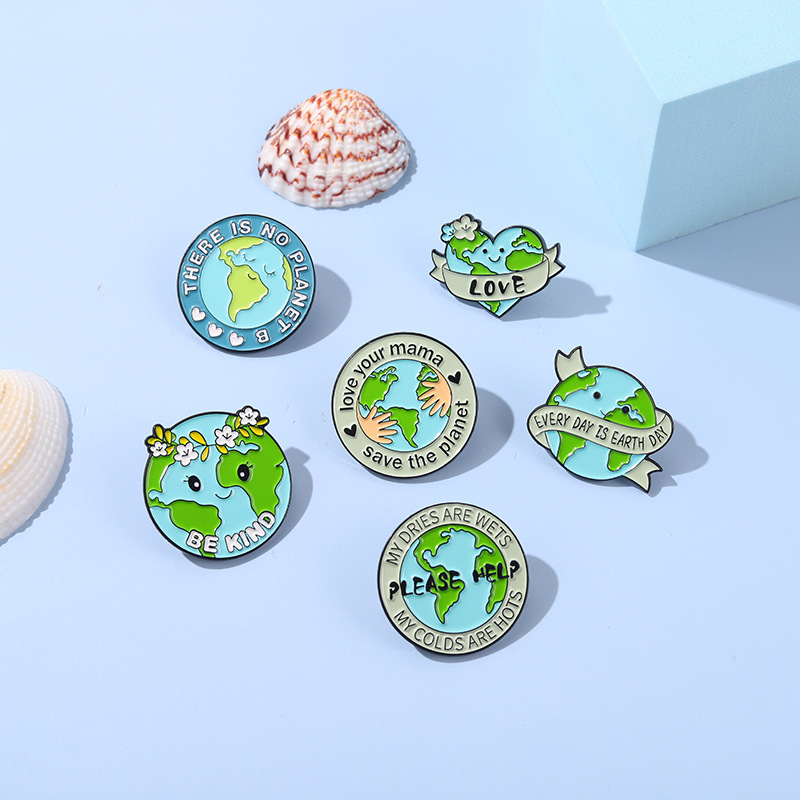
Earth Day Environmental Protection Alloy Enamel Brooch Pin Set Save Our Home Save The Planet Earth Badge Jewelry For Backpacks Jackets Denim Accessories
$0.47
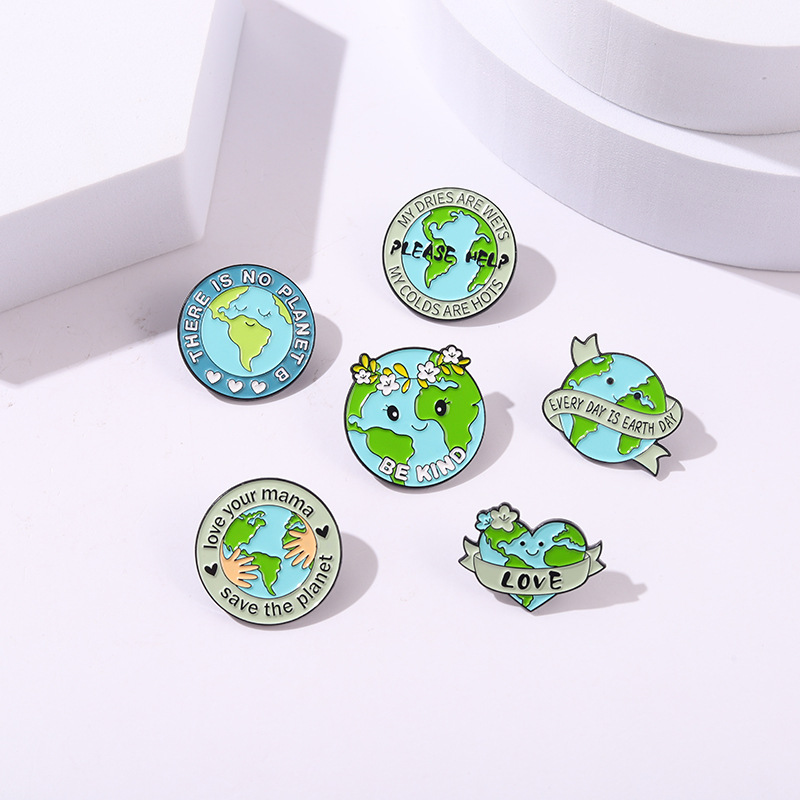
6Pcs Earth Day Enamel Brooch Set Alloy Cartoon Save The Planet Save Our Earth Heart Badge For Backpack Jacket Hat Women Men Gift Jewelry Accessories
$0.47
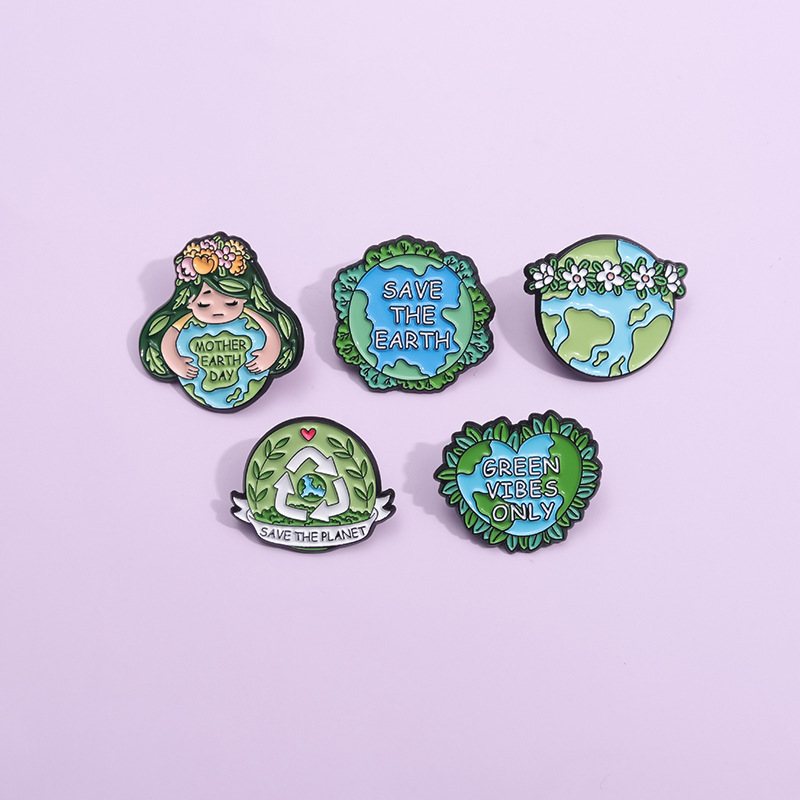
Creative Cartoon Green Earth Enamel Brooches Alloy Save The Earth Save The Planet Pin Badge For Backpack Clothing Decoration Environmental Theme Jewelry For Kids Adults Unisex
$0.52
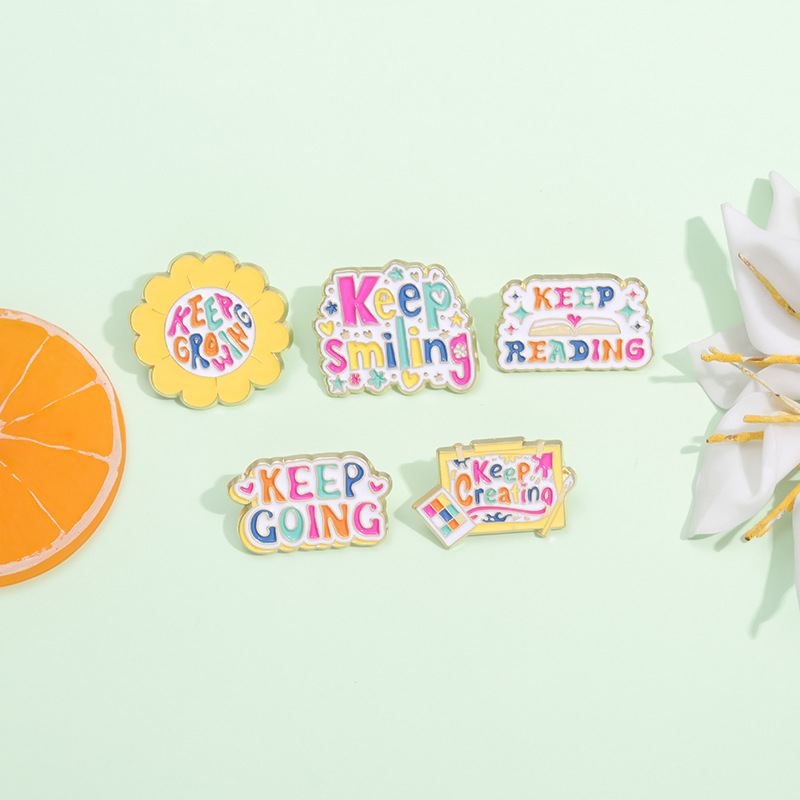
5Pcs Inspirational Enamel Pins Set Keep Smiling Growing Going Reading Creating Alloy Brooch Cartoon Lapel Badges For Women Students Backpack Clothing Accessories
$0.50
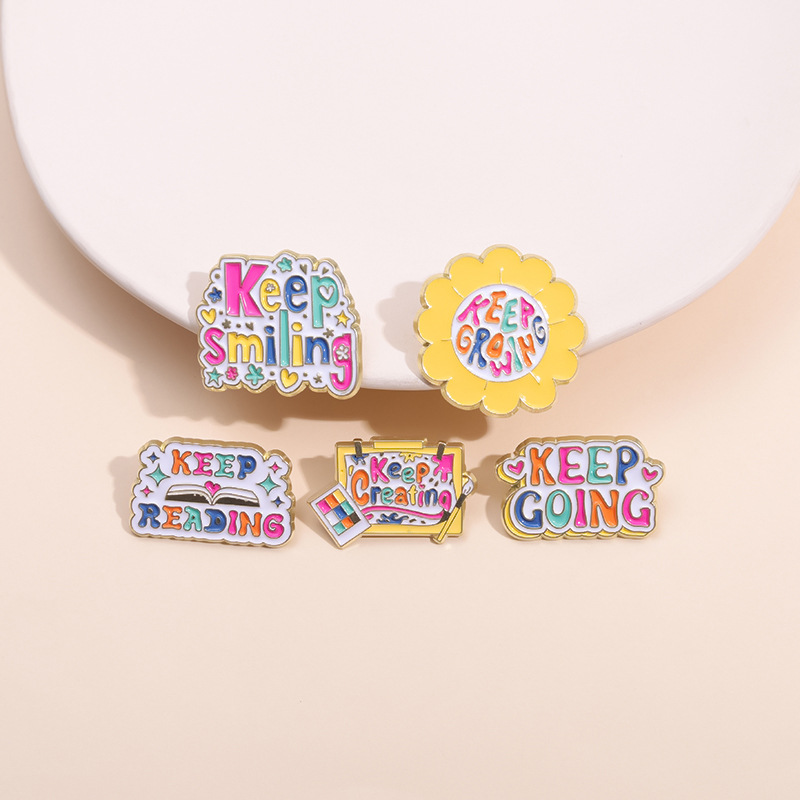
Motivational Enamel Pin Set Colorful Zinc Alloy Motivational Letters Keep Smiling Growing Reading Going Creating Brooch Badge For Backpack Clothes Decor Women Men
$0.50
Unisex Funny Before After Wine Letter Print Crew Socks Cotton Blend Novelty Graphic Mid-Calf Socks For Men Women Casual Home Party Hosiery
$1.15
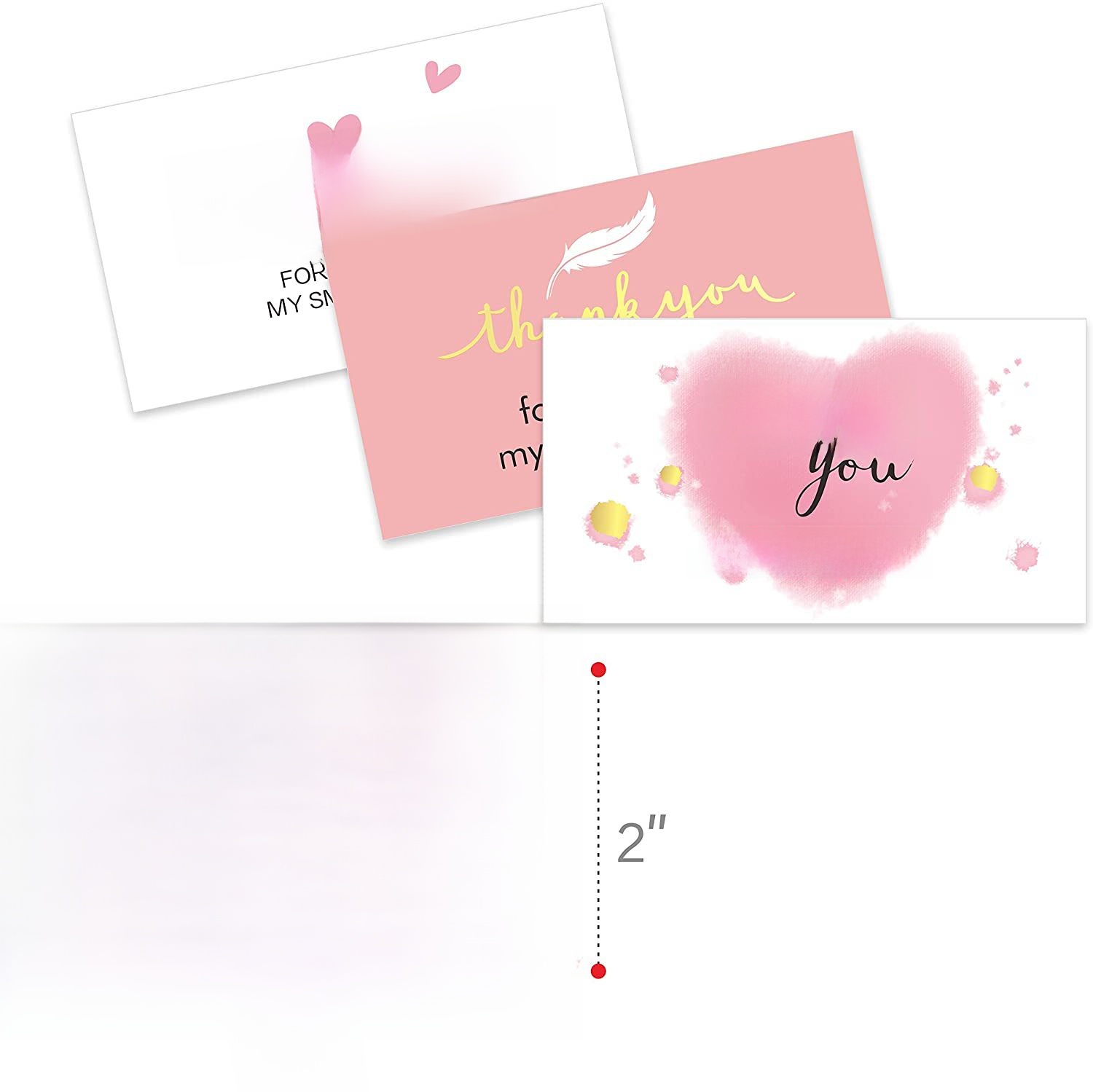
50PCS Small Business Thank You Cards 300GSM Copperplate Paper Pink Gold Foil Stamping After-sales Appreciation Cards For Gift Packaging Decor Online Shop Customers
$0.52
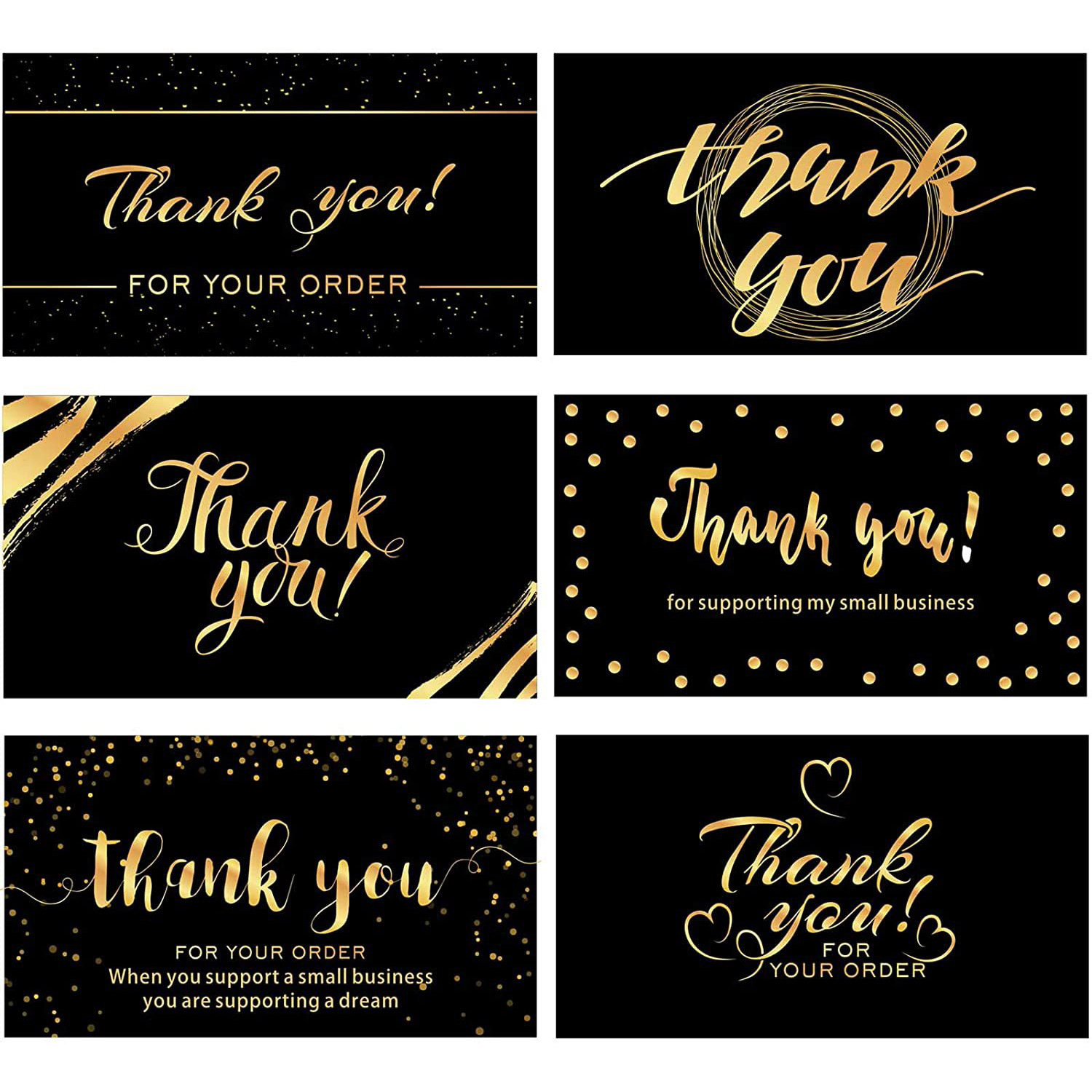
50pcs Premium Black and Gold Thank You for Your Order Cards Small Business Appreciation Cards for Packages Laminated Glossy Paper 3.5x2 Inch
$0.32
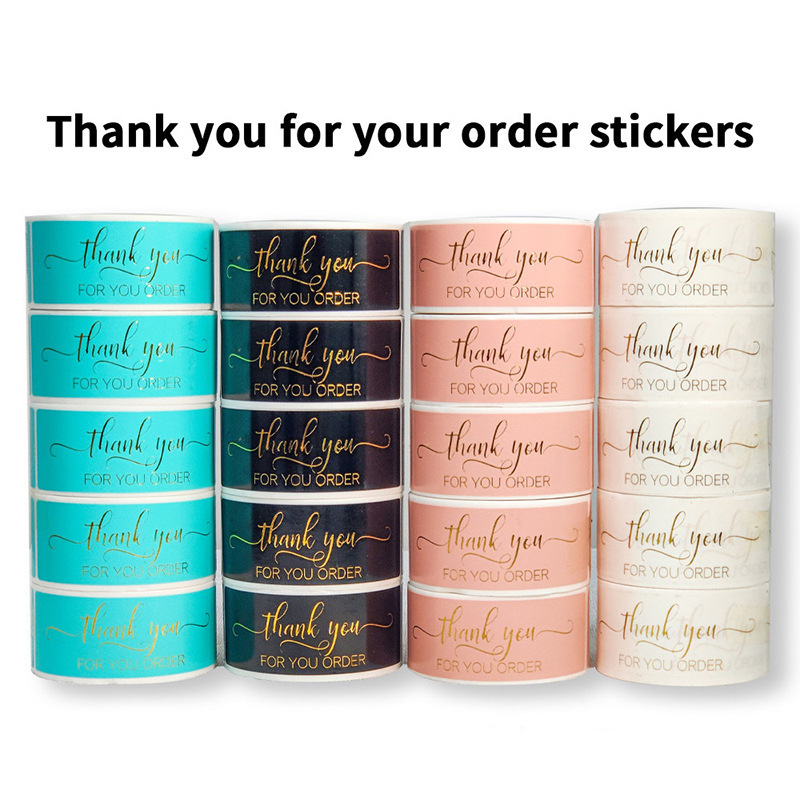
Gold Foil Thank You For Your Order Stickers Coated Paper Adhesive Labels For Gift Packaging Sealing Small Business Supplies
$1.67
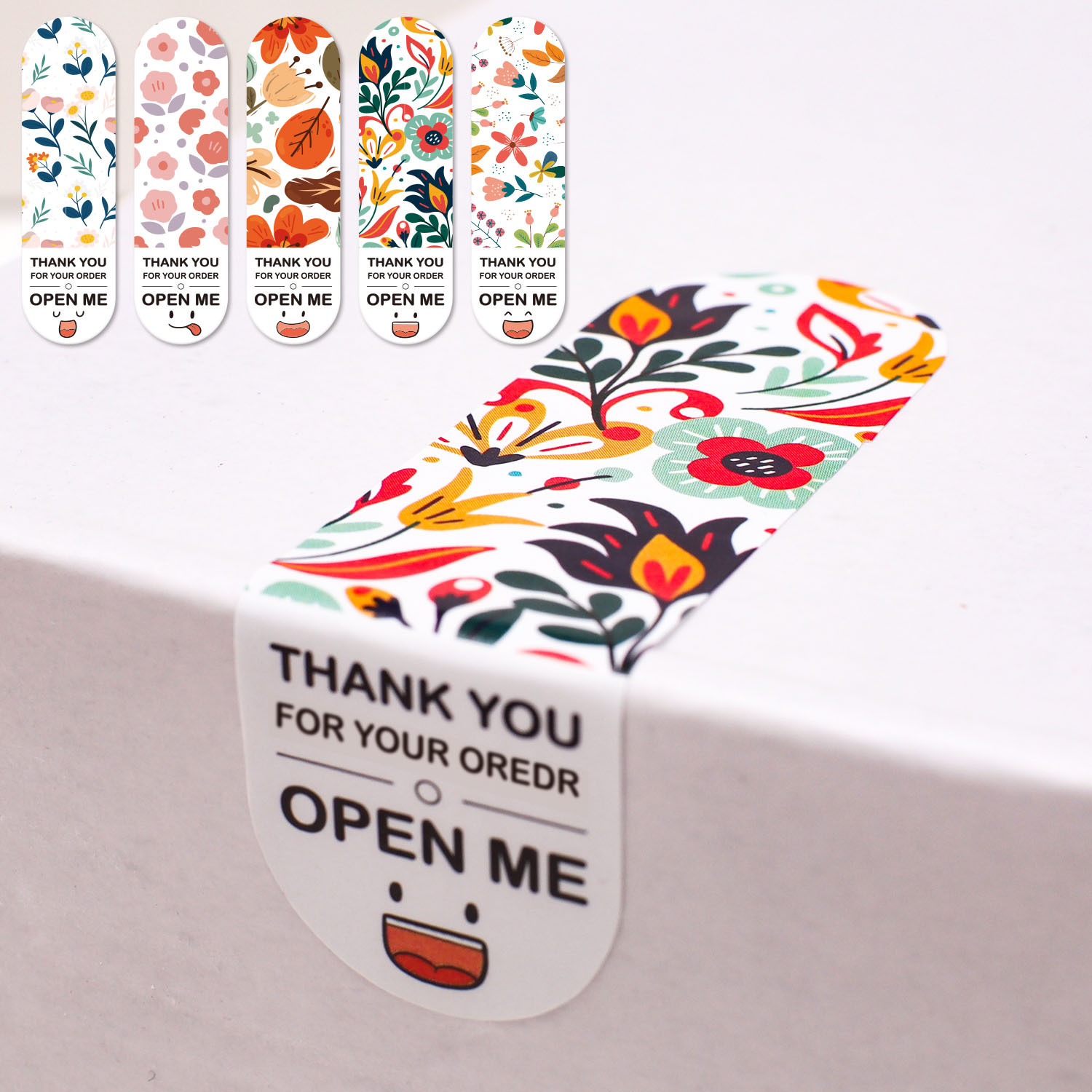
100pcs Floral Thank You For Your Order Stickers Coated Paper Adhesive Rectangle Sealing Labels For Gift Box Package Decorations
$0.47
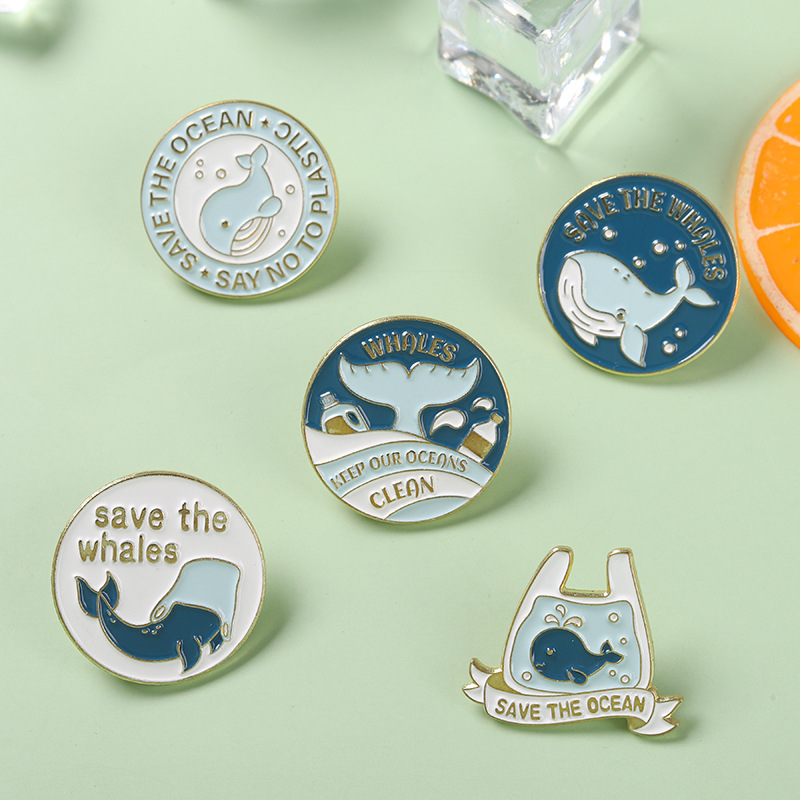
Save the Ocean Whale Enamel Brooch Pin Set Alloy Metal Environmental Protection Lapel Pin for Backpack Clothing Accessories Unisex Jewelry
$0.45
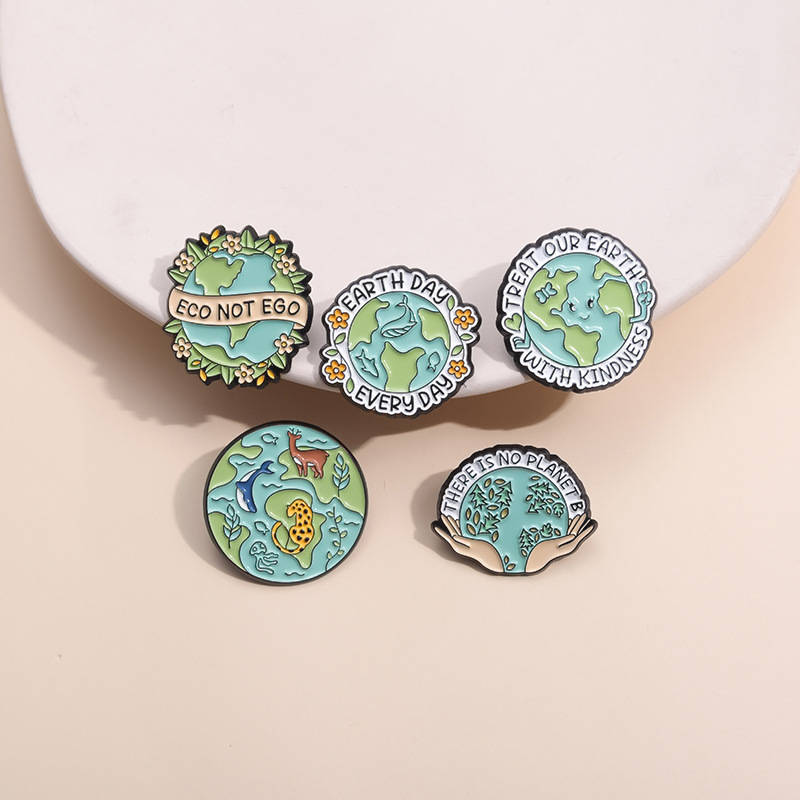
5Pcs Earth Day Enamel Pins Set Cartoon Eco Friendly Zinc Alloy Badge Save The Planet Slogan Brooch For Backpack Clothing Accessories Gift
$0.50
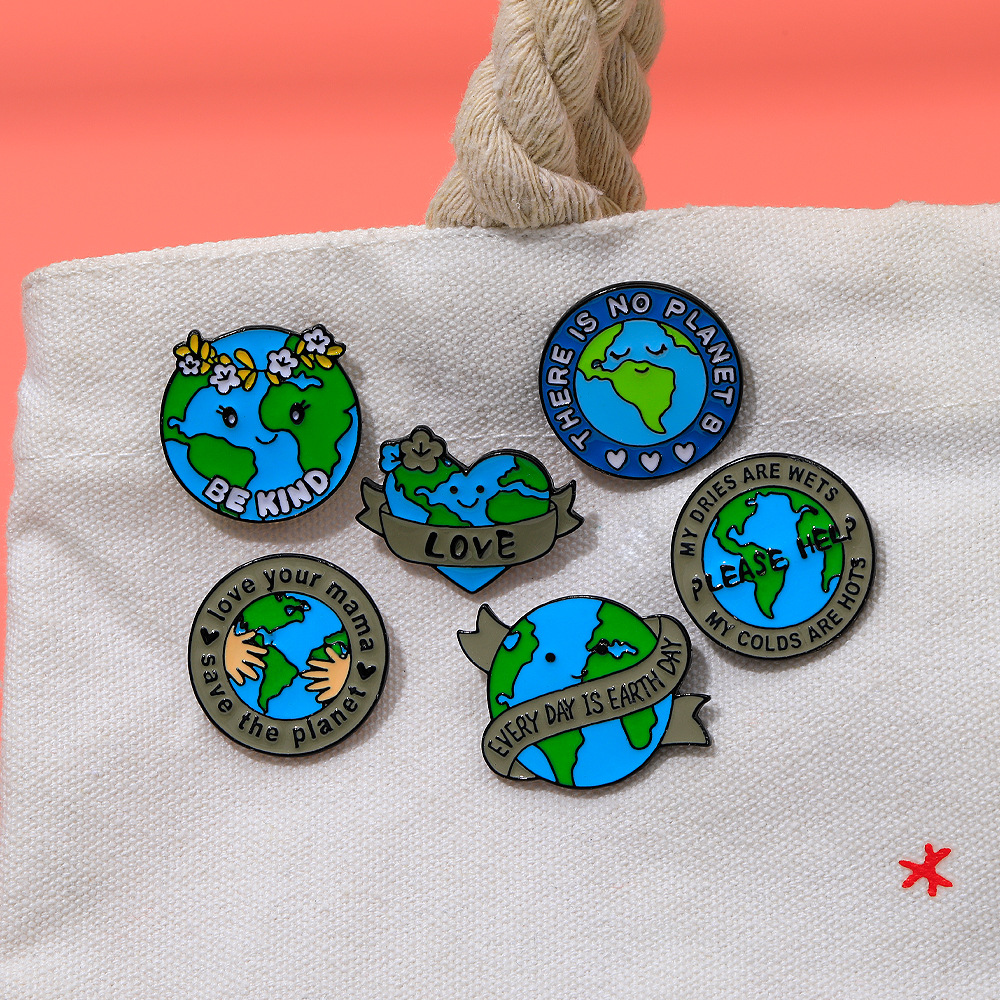
Earth Day Enamel Pins Cartoon Planet Save The Planet Slogan Alloy Brooch Badge For Backpacks Jackets Clothing Accessories Women Men Jewelry Gift
$0.42
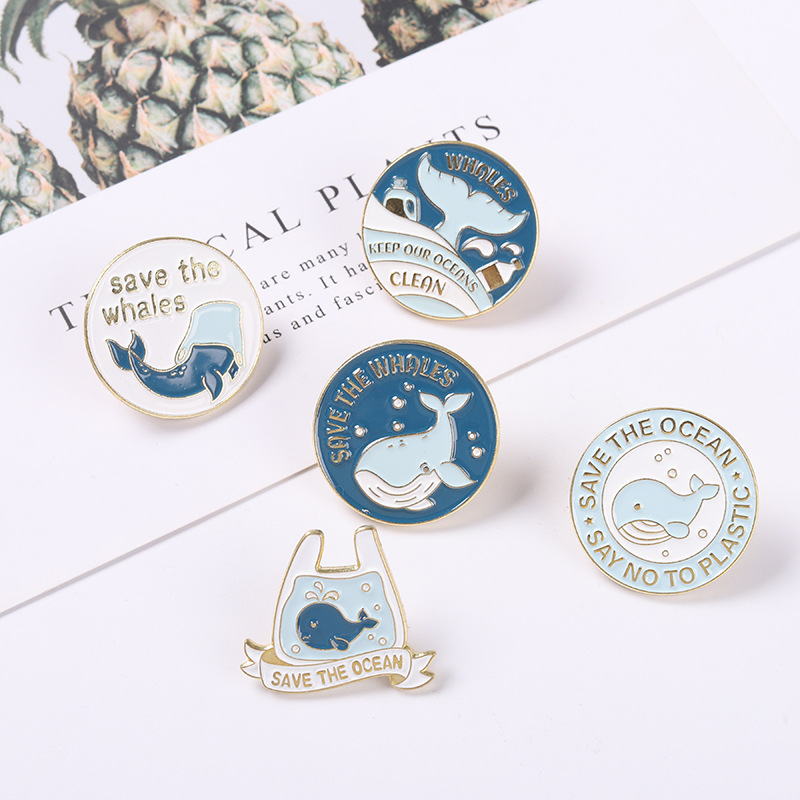
Save The Ocean Whale Enamel Pin Alloy Cartoon Animal Badge For Backpack Hat Clothes Decorative Brooch Women Kids Eco Friendly Jewelry Gift
$0.45
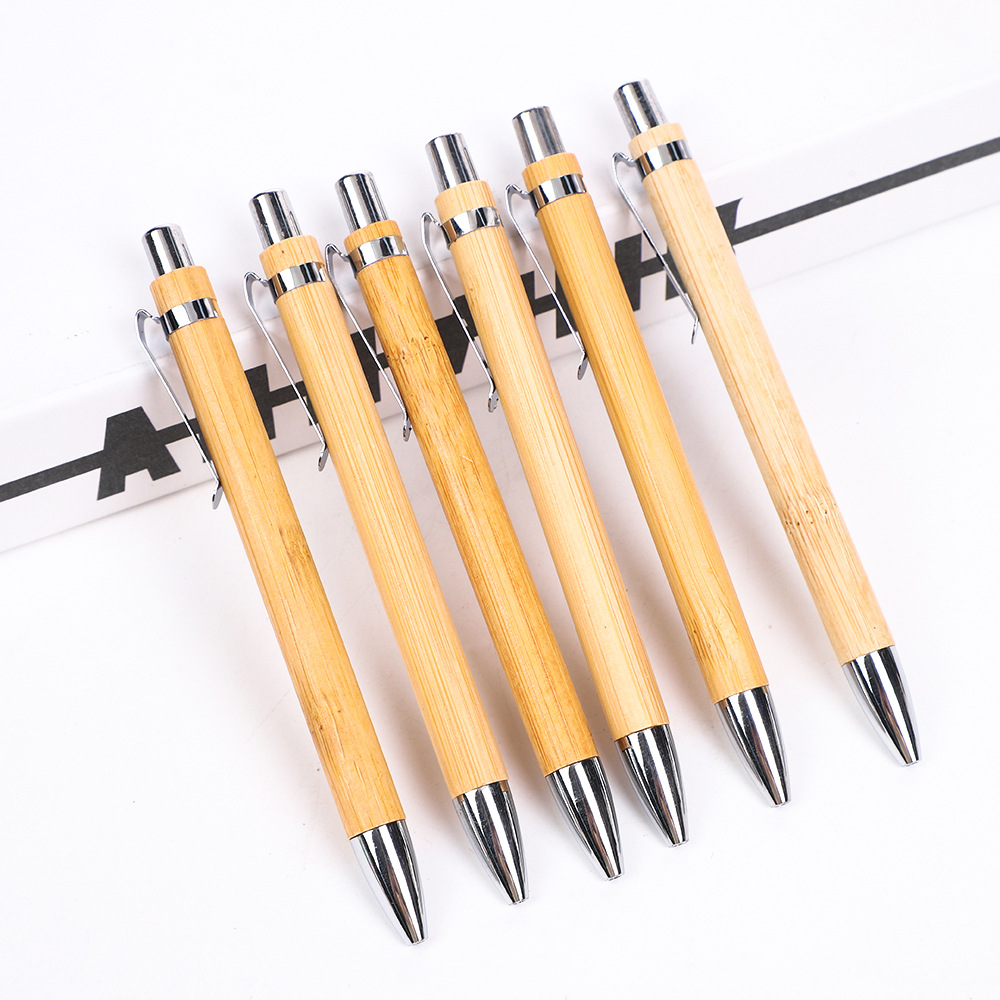
Eco Friendly Bamboo Retractable Ballpoint Pen Natural Wood Texture Click Writing Pen with Silver Metal Clip for Office School
$0.10
Bundles That Protect Profit and Impress Customers
Bundling a few low-cost items with every order increases average order value and reduces the sting of any order-processing errors. Each bundle below is designed for a specific scenario you'll face while mastering the 'save order' workflow.
Order Completion Kit
You create a manual order and are about to hit 'save'—add this bundle as a free line item to justify the extra step.
- 50PCS Small Business Thank You Cardshero
- Eco Friendly Bamboo Retractable Ballpoint Pencomplement
Bundle cost: $0.62 vs $0.62 separate. Use as a free surprise—no extra cost.
Earth Day Welcome Kit
Leaning into the Earth Day season, add this bundle to orders during April and May to align with the trend.
- Earth Day Environmental Protection Alloy Enamel Brooch Pin Sethero
- Save the Ocean Whale Enamel Brooch Pin Setupsell
- 100pcs Floral Thank You Stickerscomplement
Bundle at $0.94 vs $1.39 separate. You save $0.45 per bundle while giving customers a $2–$3 perceived value.
Motivation & Appreciation Set
After a week of dealing with the 'save order' glitch, use this bundle to rebuild goodwill with your repeat clients.
- 5Pcs Inspirational Enamel Pins Sethero
- 50pcs Premium Black and Gold Thank You Cardsupsell
Bundle at $0.82 vs $0.82 separate. The pins alone retail for $2–$3, making it a high-perceived-value add.